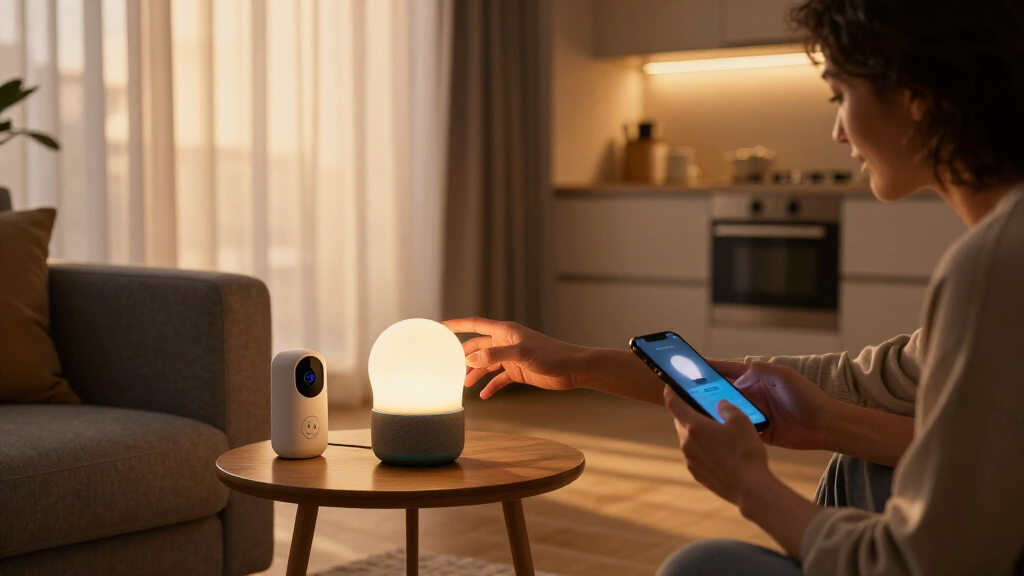

This guide walks you through setting up Amazon smart home devices from scratch: plugging in an Echo speaker or display, connecting it to Wi-Fi through the Alexa app, adding smart home products like bulbs, plugs, and thermostats, and confirming everything responds to voice commands. By the end, you will have a working Alexa smart home where you can say things like “Alexa, turn off the living room lights” and get an immediate result.

Get your next haul delivered free with Prime
- Fast, free delivery on millions of items
- Prime Video, Amazon Music and more included
- Member-only deals all year

Amazon Echo Show 15 (Newest Model)
- ✔ Display Size: 15.6 inches
- ✔ Resolution: 1920 x 1080 (Full HD)
- ✔ Built-in Features: Fire TV, Alexa voice assistant

Amazon Echo Dot (5th Gen, Newest Model) Smart Speaker with Alexa
- ✔ Size: 3.9" x 3.9" x 3.5"
- ✔ Weight: 10.7 oz (304g)
- ✔ Speaker: 1.6" full range driver, mono

Amazon Smart Plug, Works with Alexa (2-Pack)
- ✔ Size: 3.2" x 1.5" x 2.2"
- ✔ Weight: 3.1 oz (87 grams)
- ✔ Input/Output: 120VAC, 60Hz, 15A Max
This guide is written for beginners. No prior smart home experience is required — only a smartphone, a Wi-Fi network, and the devices you want to connect. Expect the initial Echo setup to take 15–20 minutes and each additional smart device to add 5–10 minutes. Plan on 45–90 minutes total for a starter setup of one Echo and two to four smart devices.
Difficulty: Beginner | Time: 45-90 minutes
What You’ll Need
Tools & Materials:
- An Amazon Echo device (Echo Dot, Echo, or Echo Show) — this is the voice control hub
- One or more Alexa-compatible smart devices (smart bulbs, smart plugs, thermostats, locks, cameras)
- A smartphone or tablet running iOS or Android, on the same Wi-Fi network you plan to use
- The free Amazon Alexa app, installed from the App Store or Google Play
- An Amazon account (create one for free at amazon.com if you do not have one)
- A 2.4 GHz Wi-Fi network with your password available (most smart devices require 2.4 GHz; many routers broadcast it automatically)
- A power outlet near where you want the Echo, plus outlets or fixtures for your smart devices
Knowledge:
- Ability to install an app and sign in on your phone
- Knowledge of your Wi-Fi network name and password
- Basic comfort giving voice commands to a speaker
Before starting, check each smart device’s packaging or product page for an “Works with Alexa” badge. Devices without this badge may not be controllable through the Alexa app. If your router broadcasts separate 2.4 GHz and 5 GHz networks with different names, connect the Echo and smart devices to the 2.4 GHz network — most smart home hardware only supports 2.4 GHz. Keep your phone, Echo, and smart devices within roughly 30 feet of your router during setup; you can move devices farther away afterward.
Amazon Echo Show 15 (Newest Model)
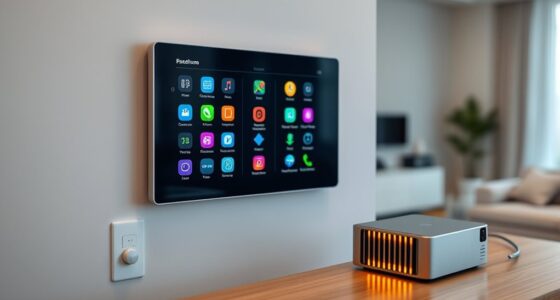
The Echo Show 15 stands out as the most complete smart home hub in this lineup because it solves a problem the other two cannot: visibility. Voice control is convenient, but a 15.6-inch Full HD dashboard lets you see every camera feed, thermostat, and light in your home at a glance — no memorized commands required. Customizable widgets turn it into a family organization station with shared calendars, to-do lists, and weather at a glance.Compared with the Echo Dot, the Show 15 trades away discreet size for a genuinely usable control surface. Where the Dot requires you to speak every command, the Show lets you tap, swipe, and monitor. It also goes beyond control with built-in Fire TV, effectively replacing a kitchen TV — though full entertainment value depends on the streaming subscriptions you already pay for.The tradeoffs are real, though. Its large footprint simply does not fit every kitchen or hallway, and it is best mounted on a wall to avoid dominating counter space. Privacy-minded buyers will appreciate the camera shutter and mic-off button, which go further than what the Dot or plugs offer.
Pros:
- Large 15.6-inch Full HD display works as a true family command center
- Built-in Fire TV adds streaming without a separate device
- Smart home dashboard centralizes cameras, lights, and thermostats
- Physical camera shutter and mic-off button offer strong privacy control
Cons:
- Large size may not fit all kitchens or spaces without wall mounting
- Full entertainment features depend on paid streaming subscriptions
Best for: Households that want a central, wall-mounted smart home dashboard and family hub
Not ideal for: Renters or small-space dwellers who cannot mount it or lack counter space
Bottom line: If you want a single device that manages and displays your entire smart home, the Echo Show 15 is the strongest foundation you can buy.
“If you want a single device that manages and displays your entire smart home, the Echo Show 15 is the strongest foundation you can buy.”
Amazon Echo Dot (5th Gen, Newest Model) Smart Speaker with Alexa
The Echo Dot (5th Gen) makes the most sense for buyers who want voice-first smart home control without dedicating wall space or a counter to a display. Its real differentiator in this lineup is not the speaker — it is the built-in motion and temperature sensors. Pair it with smart plugs or bulbs and the Dot becomes an automation trigger: walk into a room and the lights come on; the temperature rises and a fan starts. Neither the Echo Show 15 nor the Smart Plug can initiate routines this way on their own.It also pulls double duty as an eero Built-in mesh Wi-Fi extender, adding up to 1,000 sq. ft. of coverage — but only if you already run a compatible eero router, so treat this as a bonus rather than a buying reason. Compared with the Show 15, the Dot sacrifices any visual interface entirely; you manage everything by voice or through the Alexa app on your phone.The compromises are mostly audio-related. Mono playback from a single 1.6-inch driver is fine for casual listening and voice responses, but it will not fill a large room with rich sound. Privacy-conscious buyers should also note that Amazon Sidewalk ships enabled by default and shares a slice of your bandwidth unless you turn it off.
Pros:
- Compact size fits bedrooms, offices, and tight spaces
- Motion and temperature sensors unlock hands-free automation routines
- Doubles as an eero mesh extender adding up to 1,000 sq. ft. of Wi-Fi coverage
- Supports major music services including Amazon Music, Apple Music, and Spotify
Cons:
- Mono audio is not suited for stereo-quality listening
- eero Built-in requires a compatible eero router and linked accounts
- Amazon Sidewalk is enabled by default and uses a portion of your bandwidth
Best for: First-time smart home builders and anyone wanting sensor-driven automations on a budget
Not ideal for: Audiophiles or anyone who prefers visual control over voice-only interaction
Bottom line: The Echo Dot 5th Gen is the smartest starting point for most homes, combining voice control with automation sensors the pricier Show 15 lacks.
“The Echo Dot 5th Gen is the smartest starting point for most homes, combining voice control with automation sensors the pricier Show 15 lacks.”
Amazon Smart Plug, Works with Alexa (2-Pack)
Sometimes the right first smart home device is not a speaker or a display at all. The Amazon Smart Plug 2-Pack is the lowest-friction entry point in this lineup: plug one into an outlet, connect it through the Alexa app, and your bedside lamp or coffee maker is suddenly voice-controlled. No hub required, and the compact housing leaves the second outlet free — a small design choice that cheaper bulky plugs often get wrong.The catch is that these plugs do nothing without an Alexa device or the app, which makes them a companion purchase rather than a standalone one. Paired with the Echo Dot, they become dramatically more useful — the Dot’s motion sensor can trigger a plugged-in lamp, for example. Compared with both Echo devices, the plugs offer no audio, no display, and no assistant; they are pure control endpoints. They do handle reliability basics well, automatically reconnecting after power or Wi-Fi outages and supporting schedules, timers, and routines.The limitations matter more for some buyers than others: the plugs are Alexa-only, locked to 2.4 GHz networks, and rated for indoor use only. If you ever migrate to Google Home or Apple Home, these will not follow you.
Pros:
- Simple setup with no smart home hub required
- Compact design keeps the second outlet free
- Supports schedules, timers, and automated routines
- Automatically reconnects after power or Wi-Fi outages
Cons:
- Works only with Alexa; no support for other assistants or hubs
- Limited to 2.4 GHz Wi-Fi networks
- Indoor use only
Best for: Beginners testing smart home waters or Alexa owners expanding voice control affordably
Not ideal for: Households using other voice assistants or 5 GHz-only networks
Bottom line: The Smart Plug 2-Pack is the cheapest, simplest way to experience smart home automation — as long as you are committed to the Alexa ecosystem.
“The Smart Plug 2-Pack is the cheapest, simplest way to experience smart home automation — as long as you are committed to the Alexa ecosystem.”
As an Amazon Associate we earn from qualifying purchases.
Before You Start
Do two things before opening the Alexa app. First, place the Echo in the room where you will use it most — usually a central living area — and at least 8 inches away from walls and windows for the best microphone pickup. Second, fully install and power on every smart device you plan to connect: screw in smart bulbs and turn the light switch on, plug smart plugs into outlets, and insert batteries in battery-powered sensors. Devices must be powered and in their setup mode before the Alexa app can find them. Skipping this is the most common cause of a stalled setup.
Step-by-Step Instructions
Step 1: Sign in to the Alexa app
Open the Alexa app on your phone and sign in with your Amazon account username and password. Allow the app to access your location and Bluetooth if prompted — both are used during device discovery. Tap Set Up a New Device if the app offers it, or tap Devices in the bottom bar to reach the device management screen.
Tip: Use the same Amazon account you use for shopping. Skills, music services, and purchases are tied to this account, and switching accounts later means setting everything up again.
Check: The app opens to its home screen (the Alexa icon) with no sign-in prompt, and your name appears in the menu under Settings.
Step 2: Plug in and power up the Echo
Connect the Echo’s power adapter to the device and plug it into a wall outlet — not a switched outlet or power strip you might turn off. Wait 30–60 seconds while the device boots. Watch for the light ring to turn blue, then orange.
Tip: An orange ring means the Echo is in setup mode and ready to connect. If the ring never turns orange, hold the Action button (the button with a dot) for about 6 seconds until the light turns orange.
Check: The Echo’s light ring glows orange and Alexa speaks, saying she is ready for setup.
Step 3: Connect the Echo to Wi-Fi
Tap Devices in the Alexa app, tap the + icon in the top corner, tap Add Device, and select Amazon Echo, then your exact Echo model. Join the temporary Wi-Fi network the Echo creates (named something like “Amazon-XXX”) when the app prompts you, then return to the Alexa app, select your home Wi-Fi network from the list, and enter the password.
Tip: If your phone refuses to join the temporary Amazon network, go to your phone’s Wi-Fi settings and join it manually, then reopen the Alexa app.
Check: Alexa says “Your Echo is ready” and the light ring turns off or briefly blue. The Echo appears under Devices in the app.
Step 4: Add each smart device through the Alexa app
Add each smart device one at a time: tap Devices, tap the + icon, and tap Add Device. Select the device type (Light, Plug, Thermostat, Camera, and so on), then pick the brand. Follow the on-screen prompts to either complete the manufacturer’s setup (installing their skill and signing in to their account) or let the app scan your network for the device. For brands like Philips Hue, Sengled, or TP-Link, sign in to that brand’s account so Alexa can control its devices. Complete every prompt, then tap Discover Devices when offered.
Tip: Many brands work better if you set them up in their own app first (for example, the Hue or Kasa app), confirm the device works there, and then link that account to Alexa. Alexa then finds all devices on that account at once.
Check: Each device appears by name in the Devices tab, and tapping its tile toggles it on and off from the app.
Step 5: Rename devices to natural voice names
Tap each device in the Devices tab, tap the gear icon, and type a new name you would actually say out loud: “Living Room Lamp,” “Bedroom Fan,” “Front Door Lock.” Replace any model names like “Sengled 2B4F.” Then organize them: tap + and choose Add Group or Add Room to bundle devices, such as everything in the Living Room, so one command controls them all.
Tip: Names that differ by only one word (“Lamp” and “Lamp 2”) cause Alexa to mishear which device you mean. Use distinct room-based names instead.
Check: Saying “Alexa, turn on the living room lamp” turns on exactly that lamp, and saying “Alexa, turn on the living room” turns on the whole group.
Step 6: Create a routine to automate actions
Create your first routine by tapping More in the app’s bottom bar, tapping Routines, tapping the +, and naming it something like “Goodnight.” Tap When this happens and choose a trigger — a voice phrase such as “goodnight,” a scheduled time, or a motion sensor. Tap Add action, select what should happen — turn off all lights, lock the front door, set the thermostat to 68 — then tap Save.
Tip: Start with one simple routine and test it for a few days before building more. Stacked routines with conflicting actions are hard to debug.
Check: Saying your trigger phrase (“Alexa, goodnight”) runs every action in the routine within a few seconds.
Step 7: Test every device with voice commands
Test every device by going room by room and speaking the commands you expect to use daily: “Alexa, turn off the kitchen lights,” “Alexa, set the thermostat to 70,” “Alexa, lock the front door.” Watch that each device responds within about two seconds. Note any that fail or respond slowly — those need the troubleshooting steps below before you call the setup done.
Tip: Stand across the room when testing. A device that only responds when you are close to it may be blocked by furniture or too far from the router.
Check: Every device responds correctly to a spoken command, and no command requires repeating more than once.
Common Mistakes to Avoid
- Putting the Echo or smart devices on the 5 GHz Wi-Fi band, leaving them unable to connect or constantly dropping offline. — Connect all smart home hardware to the 2.4 GHz network. If your router uses one name for both bands, temporarily separate them during setup, or check the router app to confirm which band each device joined.
- Leaving smart devices powered off or not in pairing mode before discovery, so the Alexa app finds nothing. — Power every device on before starting setup, and follow the manufacturer’s pairing instructions — many bulbs require toggling the switch five times to enter pairing mode.
- Naming devices with generic or confusing names like “Plug 1” and “Plug 2,” causing Alexa to turn on the wrong device. — Rename every device to a spoken, room-based name immediately after adding it, and group devices by room so commands are unambiguous.
- Plugging smart bulbs into circuits controlled by a wall dimmer, which flickers or damages the bulb. — Use smart bulbs only in non-dimmable fixtures with the wall switch left permanently on. If you need dimming, buy dimmable smart bulbs and control dimming by voice or app.
Troubleshooting
Problem: Alexa says “Sorry, the device is unresponsive” when you give a command.
Solution: Power-cycle the unresponsive device: turn it off for 10 seconds and back on. If it stays unresponsive, check its location in the manufacturer’s app — if the app also can’t reach it, the device is too far from the router or the Wi-Fi dropped. Move it closer or add a Wi-Fi extender, then say “Alexa, discover my devices” to refresh the connection.
Problem: The Alexa app cannot find the Echo during setup.
Solution: Confirm the Echo’s light ring is orange. If not, hold the Action button for 6 seconds to reset it to setup mode. Then close the Alexa app, turn your phone’s Bluetooth off and on, and reopen the app. Avoiding the temporary Amazon Wi-Fi network prompt is common — join it manually from your phone’s Wi-Fi settings if needed.
Problem: Duplicate devices appear — the same lamp listed twice.
Solution: This happens when a device is discovered both directly and through its manufacturer’s skill. Open the Alexa app, tap Devices, find the duplicate, and disable the one that does not respond. If both respond, delete both entries and re-run discovery once so only one is registered.
Problem: Routines run only partially — the lights turn off but the thermostat does not change.
Solution: Open the routine in the Alexa app and confirm every action is still listed and the thermostat device still shows as online in the Devices tab. Some thermostat brands require re-authorizing their skill every few months; check More > Skills & Games > Your Skills, open the brand’s skill, and re-enter your credentials if prompted.
What Success Looks Like
Your setup is complete when all of the following are true: the Echo answers questions from across the room; every smart device appears by a recognizable name in the Alexa app’s Devices tab; each device responds correctly to a spoken command within about two seconds; at least one room group responds to a single command (“Alexa, turn off the living room”); and your first routine runs end-to-end from its trigger phrase. If any of these fail, work through the troubleshooting section for that device before adding more devices — problems multiply as the system grows.
Next Steps
Once the basics work, expand gradually. Add devices one at a time and test each before installing the next, so a problem is always traceable to the newest addition. Useful next additions: a smart doorbell or camera for security, motion sensors to trigger hallway lights at night, and an Echo in each bedroom so voice control works everywhere. Check for firmware updates monthly by tapping each device in the Alexa app and looking for update prompts, and replace the phrase “Alexa” with a different wake word (Amazon, Echo, Ziggy, or Computer) in Settings if it triggers accidentally. If devices repeatedly drop offline after a router change, re-run Wi-Fi setup for the Echo and re-authorize each manufacturer’s skill.
Frequently Asked Questions
Do I need an Echo for every room?
No. One Echo can control every smart device in the house since commands travel over Wi-Fi. Extra Echos are for convenience — voice pickup in each room — not for control range. A single Echo Dot is enough for a small apartment.
Do smart devices work if the internet goes out?
Voice control through Alexa stops working without internet, but most smart devices still work locally: smart plugs can be toggled with their physical button, smart bulbs respond to wall switches (if the switch is on), and bulbs on a hub like Philips Hue still work with Hue’s app on the local network. Battery-powered sensors and cameras that store footage locally keep working; cloud-dependent cameras do not.
Can I control everything when I’m away from home?
Yes. The Alexa app works over cellular data, so you can check camera feeds, lock doors, and turn devices on and off from anywhere. Enable the away-from-home features under Settings > Device Settings for locks and cameras, and set up Guard (More > Settings > Guard) to alert you about smoke alarms or glass breaking while you are out.
What is the difference between Wi-Fi devices and Zigbee or Z-Wave devices?
Wi-Fi devices connect straight to your router; Zigbee and Z-Wave devices need a hub. Many Echo models include a built-in Zigbee hub, so Zigbee bulbs and plugs can pair directly to the Echo without extra hardware. Zigbee devices also put less strain on your router and work when the internet is down (for local control). Check the Echo product page to confirm which models include the Zigbee hub.
How do I stop other people in the house from triggering devices by accident?
Create voice profiles under Settings > Your Profile & Family > Voice so Alexa recognizes each household member, and use Alexa Guard or a PIN for sensitive actions — you can require a spoken PIN for unlocking doors or making purchases under Settings > Voice Purchasing.
Halloween Picks
halloween
As an affiliate, we earn on qualifying purchases.